
Artwork Setup Guide
Need help with your artwork setup or have any questions? Click through the tabs below for some tips and information on how to supply your artwork to acheive the best quality print results.
Use Our Free Templates
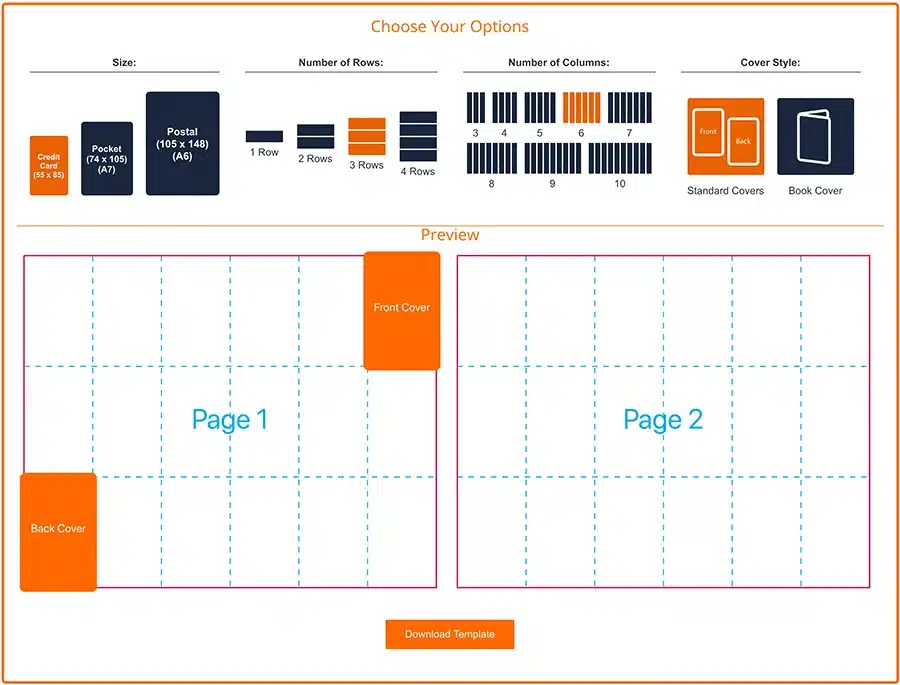
Before you start designing, visit our Templates page and create your free template using our template maker. This will allow you to generate a template by selecting the Size, Rows and Columns you require and which Cover type you prefer.
Fonts
Fonts are the character sets used in documents to display different styles of text, however not all computers have the same fonts installed, so a font you are using on your computer might not be available to us. If an application can’t find the fonts used in a document, it will either show an error that the font is missing or sometimes display the text in a substituted font instead.
To ensure your artwork is printed with the correct fonts, you should do one of the following:
- SEND FONT FILES WITH YOUR ARTWORK – If you’re using Adobe Illustrator or Adobe InDesign, you can select File > Package; this will save your main document with all your, font files and images together in one folder ready to send to us.
- EMBED FONTS – When supplying your artwork as a PDF, most modern software packages such as Adobe Illustrator or Adobe InDesign will embed the font files in the PDF automatically, however on some older programs you will need to specify this option when exporting the file. To check if a PDF has embedded fonts you can open the file in Adobe Reader and navigate to the properties page in the File menu; on the Fonts tab it will show you the font information. If the font has been embedded it will say “Embedded” or “Embedded Subset” next to the font name.
- OUTLINE FONTS – Select Type > Create Outlines in Adobe Illustrator or Adobe InDesign (or Type > Convert to Shape in Adobe Photoshop), this will remove the font and instead change your text into standalone shapes. PLEASE NOTE: Text which has been converted to outlines can no longer be edited, so make sure you backup your artwork before converting.
Some font companies restrict the embedding or outlining of their fonts, if this is the case you may run into difficulties or get error messages from the software package you are using. If you’re having any issues with fonts please contact us and we will do our best to help.
Image Size & Resolution
Getting good quality images when printing depend on two factors: Resolution and Size.
As a general rule images should be supplied at a resolution of 300ppi and as close as possible to the final physical size they will be printed. If your image is too small or the resolution is too low, it will appear pixeled and poor quality in the final print.
Internet Sourced Images
Images sourced from web pages on the internet will almost always have a resolution of 72ppi, which is the recommended resolution for web images, however this is usually not good enough to print from, unless it is being reduced in size considerably.
Digital Photos
Nowadays most digital cameras also save images at 72ppi; the difference with these images is that the physical size is much bigger, for example photos taken on an iPhone will be 72ppi but will be over 1.42m wide and 1.06m high. That’s quite a large image!
If you scale these images down, the pixel density increases proportionally and so the image is usually good enough to print when made smaller.
But how small?…
A good way to check the size that you can print a digital image is to use an editor like Adobe Photoshop. If you open an image and select “Image size” from the “image” menu it will show the current size of the image. If you deselect the “Resample Image” checkbox and then change the “Resolution” to 300ppi, you will see the “Document Size” figures change; these will be the actual dimensions of the image when printed at 300ppi.
Colour Format
Before submitting your artwork, please ensure your design is saved in CMYK colour mode; this is the standard colour mode for professional printing. This includes all photos and graphic elements.
Any items saved in RGB mode may give incorrect colour results when they are printed by our CMYK presses. RGB is a colour mode intended only for digital displays and web images.
Most software applications will have an option to save in CMYK format. In Adobe illustrator for example you can select File > Document Colour Mode > CMYK or in Adobe Photoshop you can select Image > Mode > CMYK Colour and then Save.
If you’re working in InDesign, you can convert any RGB images within your design by saving as a PDF and selecting the Press Quality PDF pre-set in the Save Adobe PDF dialog – then in the Output tab, select Convert to Destination (Preserve Numbers) and select a CMYK profile (usually one labelled “FOGRA 39′ which is best for European printing).
The Technical stuff
RGB is an acronym for Red, Green, Blue which are the separation colours of light, whereas CMYK is short for Cyan, Magenta, Yellow and Black (the K or ‘Key’ is a term from traditional printing where the Key colour is the plate that holds the detail in the image, in CMYK printing that colour is Black, hence the K represents the Black separation).
Because anything that is RGB will have to be converted into CMYK to be printed, sometimes colour values can change quite drastically and therefore the colour of the final print can be quite different to what was expected. This is because there are far more colours available in the RGB spectrum than there are for CMYK, so brighter colour RGB values are changed to what is perceived by the software to be the closest equivalent value available in CMYK, when in reality they are quite different.
Unfortunately, we have to use RGB computer screens to create our designs, therefore what you see on your screen does not truly represent the colour of your final print; most monitors can only provide what is a best guess to what the colour will look like. Calibrated monitors are available, which can provide a much more accurate colour simulation than standard monitors, but they are still not perfect and can be quite expensive. It’s not surprising that even experienced designers can sometimes struggle with colour differences between what they see on the screen and the final print.
To try and narrow the gap between these colour differences, Colour Profiles were introduced as a way to convert colour from one format to another. These profiles consist of libraries of values that are used as a sort of translation by the software to achieve the closest possible colours during conversion. Nowadays most printers and monitors have colour profiles either supplied with them or built in.
However some RGB colours can never be reproduced in print simply because the colours do not exist in CMYK and because of the way the colour is displayed; colours on a monitor are illuminated from behind, whereas printed colours use reflected light from the surface of the media.
Printer Marks & Bleed
Please ensure your artwork files include at least a 3mm bleed area and trim/crop marks.
Bleed is used for images or graphic elements that are on the edge of, or run off of, the edge of the document. The bleed allows for the slight machine movement during the trimming process and ensures that these elements are trimmed leaving no undesired white edges.
A safe area or margin is also recommended on the inside of the page to ensure important information, text or logos etc. are not too close to the edge; this will remove the risk of them getting trimmed too.
Artwork FAQs
Artwork is preferred in PDF file format, but our team can also work with InDesign, Illustrator and Photoshop source files, like JPEGs and TIFFs. Microsoft file formats such as Word, Publisher and PowerPoint are also accepted. Please don’t send us an interactive PDF, as these are designed to be used for other media types and won’t be suitable for printing.
It’s best to design your artwork in the same dimensions as your product, if possible. You can download templates for the most commonly available sizes on our templates page.
Be sure to include at least 3mm of bleed in your design. (For more information on bleed and safe zones, please see the below.)
All artwork is checked by our team before going to print, and we’ll contact you if there is a problem.
A cutter guide is a stroke outline around your print artwork which matches the shape of the finished product. If you’re looking to order custom-shaped die-cut printed products, your artwork will need to include a cutter guide.
The cutter guide is sent off to our die-cutters, who then assemble a cutter block with a bespoke-shaped blade which enables us to cut your printed products to the desired shape.
When creating the cutter guide outline in your artwork file, please use a 1pt stroke in a separate spot colour to your artwork and rename the layer to ‘cutter’. Use magenta, red or green for the stroke colour, as these will be clearly visible on the final PDF.
Our team also has an ever-growing library of ready-made cutter blocks in a range of versatile shapes. To find out which shapes are available, simply get in touch!
A cutter guide is a stroke outline around your print artwork which matches the shape of the finished product. If you’re looking to order custom-shaped die-cut printed products, your artwork will need to include a cutter guide.
The cutter guide is sent off to our die-cutters, who then assemble a cutter block with a bespoke-shaped blade which enables us to cut your printed products to the desired shape.
When creating the cutter guide outline in your artwork file, please use a 1pt stroke in a separate spot colour to your artwork and rename the layer to ‘cutter’. Use magenta, red or green for the stroke colour, as these will be clearly visible on the final PDF.
Our team also has an ever-growing library of ready-made cutter blocks in a range of versatile shapes. To find out which shapes are available, simply get in touch!
Variable data printing enables you to personalise each individual product in your order, by printing data entries ‘on top’ of your artwork.
To set up a variable data print run, you’ll need to supply a ‘base’ artwork file (featuring all the design elements which will be shared across the whole print run) and a spreadsheet file listing all the variable elements you want to print.
When creating your artwork file, be sure to indicate the areas where you’d like your variable elements to be printed. It’s best to put any placeholder elements on a separate layer to the rest of your artwork, and don’t forget to rename the layer with a clear title (e.g. ‘variable print elements’) to prevent it getting confused with the rest of your design.
Your spreadsheet file can be created in programs such as Microsoft Excel or Open Office. Place each variable word, phrase, number or image/graphic filename in a separate row. (If you’re looking to print variable images/graphics, same each one as a separate file and send them to us in a folder along with your artwork and spreadsheet files.)
If you’re looking to print multiple variable elements, create columns for each element and give them relevant names (e.g. ‘Names’, ‘Addresses’, ‘Barcodes’ etc.). Each row should contain all the elements to be printed on any given product in their appropriate columns.
Need help with your variable print order? Our team is always happy to assist – simply drop us a line!
If you’re looking to add finishing extras (such as foil stamping, Spot UV varnish, embossing/debossing etc.) or variable-printed elements to your design, you’ll likely want to indicate the areas where these elements will be located in the finished print.
Copy the relevant elements onto a separate layer in your design software and give the layer a relevant name or contact us directly with your requirements.
Call 02380 878030 or email us to speak to our sales team today.
Here’s a handy checklist for ensuring your artwork is ready to print. (If you’re unsure about any of these, contact us for help!)
- Check that all spelling and grammar is correct
- Check that you’re 100% happy with the layout, style and content of your design
- Check that you’ve saved your artwork in the correct file type. High resolution (press quality) 300dpi PDFs are preferred, but our team can work with other file types if necessary
- Check that all images used in your artwork are in 300dpi resolution at actual print size
- Check that all fonts are embedded, converted to outlines or supplied as font files with your artwork
- If you’re supplying your artwork as a project file tied to a particular design software (such as Adobe Indesign or Illustrator), check that all fonts and images are included and embedded
- To prevent inaccurate colour reproduction, check that your artwork is saved in CMYK mode and all images have been converted to CMYK
- Check that you’ve included at least 3mm of bleed in your design (see Bleed Area section above for more details)
- Check that any spot colours have been set up correctly
- If you’re designing a product with multiple pages and you’re submitting your artwork as a PDF, check that the artwork is arranged in single pages rather than side-by-side page spreads
- If you’re ordering custom-shaped products, check that you’ve included a cutter guide (see above for more details)
If you’re ordering online, you’ll be prompted with a section to upload your artwork before submitting your order. Alternatively, if you’re ordering via phone or our contact form, you can email your artwork to our friendly team. Check out our Contact Page for details.
If you’re having trouble uploading or emailing your artwork due to file size limitations, our team can also accept artwork via WeTransfer or FTP. Contact us for more details.
We carry out a free artwork check on every order, and we’ll send you a free digital PDF proof for you to inspect before going to print.
Please check the proof carefully before sending us your approval, as we cannot be held responsible for any errors that occur after the proof has been approved.
Don’t worry, these lines will not appear on your final print! These lines indicate the safe zone (as explained above). Make sure no important elements of your print appear outside the safe zone (such as text or icons) to ensure they won’t be cut off during trimming.
We’ve got you covered! We offer three different design services, ranging from basic edits to a full, complete, bespoke design. Take a look at our Artwork Design Services page for more information.